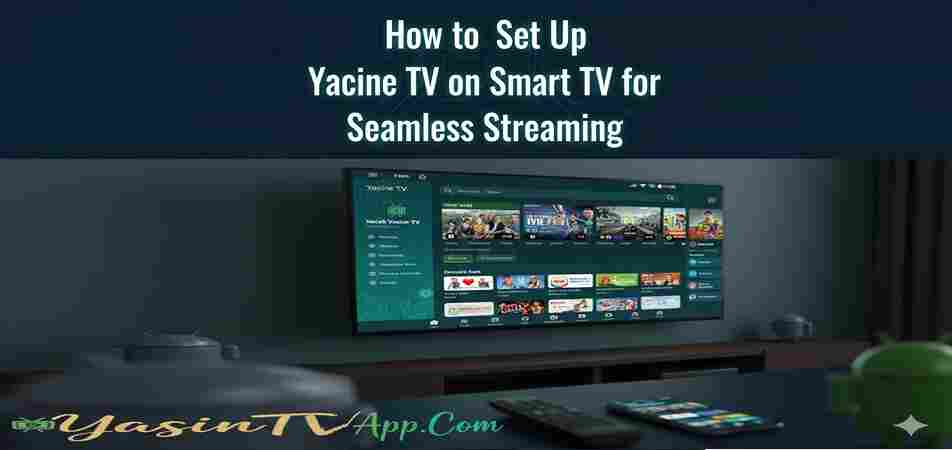
How to Set Up Yacine TV on Smart TV for Seamless Streaming
Yacine TV is a popular app for streaming live sports, TV shows, and movies. Although it’s not officially available on app stores like Google Play or Apple App Store for smart TVs, you can still enjoy it on your Smart TV by using a few simple tricks. This guide will walk you through the steps to set up Yacine TV on Smart TV for smooth and hassle-free streaming.
Step 1: Check Your Smart TV’s Compatibility
Before you start, it’s important to ensure that your Smart TV is compatible with third-party apps. Most modern smart TVs running on Android TV, Tizen (Samsung), or WebOS (LG) will allow you to sideload apps or use casting methods. Make sure your TV is connected to the internet and that you have access to app installation options.
Step 2: Use Screen Mirroring or Casting
If your TV doesn't support direct installation of third-party apps, you can still stream Yacine TV using screen mirroring or casting from your smart phone. Here's how:
For Android TVs:
Make sure your TV and Android device are connected to the same Wi-Fi network.
Open the Yacine TV app on your Android device.
Tap on the Cast icon (usually found in the app’s settings or top menu).
Select your Smart TV from the list of available devices.
The content from your phone will be mirrored on the TV screen.
For Chromecast-enabled TVs:
Download and open Google Home on your Android device.
Tap on the Cast icon and select your Chromecast-enabled TV.
Now you can stream Yacine TV from your phone directly to your TV.
Step 3: Install Yacine TV Using a Third-Party App Store (For Android TV)
For Android-based Smart TVs, you can directly install Yacine TV using a third-party app store like Aptoide TV or Downloader. Here’s how to do it:
Open the Google Play Store on your TV.
Search for Aptoide TV or Downloader and install the app.
Once installed, use Aptoide TV to search for Yacine TV and download the APK file.
After the download, open the APK file to install Yacine TV on your TV.
Once installed, launch Yacine TV and start streaming.
Step 4: Use an Android TV Box or Fire Stick
If your Smart TV doesn’t support third-party apps or casting, another option is to use an Android TV Box or Fire Stick. These devices run on Android and allow you to install any app, including Yacine TV. Here’s how to set it up:
Plug in the Android TV Box or Fire Stick to your TV’s HDMI port.
Connect it to your Wi-Fi network.
Open the device’s app store (Google Play for Android TV Box or Amazon Appstore for Fire Stick).
Search for Yacine TV and install it.
Launch the app and enjoy streaming.
Troubleshooting Common Issues
While setting up Yacine TV on pc, you might encounter a few issues. Here are some quick fixes:
App not working: Ensure that your internet connection is stable. If you're using screen mirroring or casting, ensure both devices are connected to the same Wi-Fi network.
App crashes or doesn’t open: Reinstall the app or try updating the software on your Smart TV.
Buffering or lagging: Check your internet speed and reduce the quality settings on Yacine TV for smoother streaming.
Conclusion
Setting up Yacine TV on your Smart TV for seamless streaming is easy, and there are multiple ways to do it depending on the type of TV you have. Whether using screen mirroring, installing through a third-party app store, or using an Android TV Box or Fire Stick, you can enjoy all the live sports, TV shows, and movies that Yacine TV has to offer. Just make sure your internet connection is strong and stable for the best viewing experience.